PS2 BIOS Download for ARMSX2 (Files by Region)

The PS2 BIOS is essential system firmware required by the ARMSX2 Android emulator to boot up and smoothly run PlayStation 2 game discs. Download a BIOS dump from a PS2 console that is compatible with ARMSX2.
What is the PS2 BIOS for the ARMSX2 Emulator?
The PlayStation 2 BIOS is a system firmware essential for the ARMSX2 Android emulator to perform PlayStation 2 emulation, enabling smooth gameplay from PS2 game discs. The emulator loads this BIOS first to interpret complex game instructions, allowing the full PlayStation 2 system to run on ARM devices via ARMSX2. The BIOS handles 3D graphics rendering, memory and controller management, and smooth multi-channel audio processing.
To run the ARMSX2 emulator, you need to provide a PS2 BIOS, which you can download from this page. You must import the BIOS into ARMSX2 and then attempt to boot it to check if it runs smoothly; if successful, you can play free PS2 console games on your device using the ARMSX2 emulator.
PS2 BIOS files and region labels
Each link points to a 4 MiB .bin file. The region labels come from the filenames; the exact console model, BIOS version, and compatibility have not been independently verified. Use the hashes below to check that a downloaded file matches the one listed here.
| File label | Download | Region label |
|---|---|---|
| PS2BIOS USA | Download PS2BIOS USA (NTSC) | NTSC |
| PS2BIOS Europe | Download PS2 BIOS EUROPA (PAL) | PAL |
| PS2BIOS JAPAN | Download PS2 BIOS Japan (NTSC) | NTSC |
| PS2BIOS CHINA | Download PS2 BIOS China (NTSC) | NTSC |
| PS2BIOS Russia | Download PS2 BIOS Russia (PAL) | PAL |
| PS2BIOS Hong Kong / Asia | Download PS2 BIOS Hongkong or Asia (NTSC) | NTSC |
File sizes and SHA-256 hashes
Each file is 4,194,304 bytes (4 MiB). A matching hash checks file identity; it does not verify its origin, safety, console model, or BIOS version.
- USA
c7628a01da23d7d38851aec8403e535581d0f2a781fee5b86b1c648b13a9970d- Europe
8921e73006ac2c01922fcc7b76da6b9caed6b20fbd4e69f165635e18542de6ab- Japan
afb3ddd3b285c11865ce62d1d47a20e4aa699a2539b31c2629a4a49d2100869b- China
3f11bc1a9d1697fe950d73ac9deb6b49c984948c108f569d7b118a7bf8e1813b- Russia
d6da9154a9954cafd9d3df44609236ba86c197a0b7d75380f952c4cb910b67f6- Hong Kong / Asia
79b89a771d6f36fd96a0c4267df2559d034e5c96cd140e536a20f3c0c97efe16
What to Check Before Importing a BIOS
These checks help you identify the file and find setup problems. They do not replace testing a specific ARMSX2 build and game.
Region label
The filenames indicate USA, Europe, Japan, China, Russia, or Hong Kong / Asia. Check the region shown in ARMSX2 after importing; a filename is not proof of the BIOS's internal region.
File integrity
Compare your downloaded file's SHA-256 hash with the matching entry above. If it differs, the download is not identical to the file listed here.
Game compatibility
A recognized BIOS is one setup requirement. Audio and game performance also depend on the emulator build, device, graphics settings, and game.
File format
The download links on this page lead directly to .bin files, not ZIP archives. Select the downloaded file when ARMSX2 asks you to import a BIOS.
Detected BIOS
After import, confirm that ARMSX2 lists the BIOS as available. If it does not, recheck the selected file, its location, and its hash before changing game settings.
Included files
Each link here is a single .bin file. The page does not offer separate .MEC or .NVM downloads, so check your emulator's instructions if it requests additional files.
How to Install BIOS on ARMSX2
Here are the steps to install the BIOS in ARMSX2. Make sure you have downloaded the BIOS and installed the ARMSX2 emulator application:
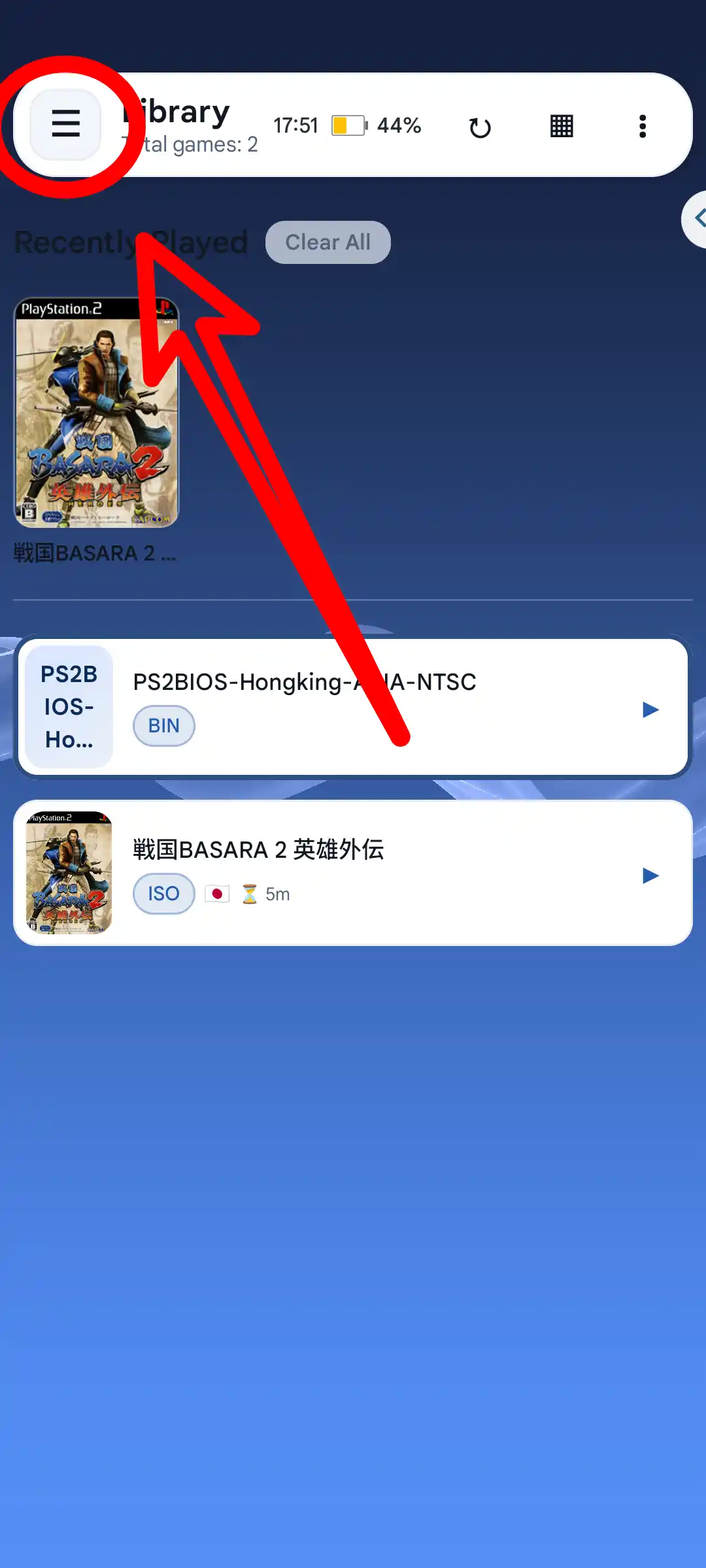
1. Open the app and access the menu
First, open the ARMSX2 emulator app, then tap the hamburger menu in the top-left corner.
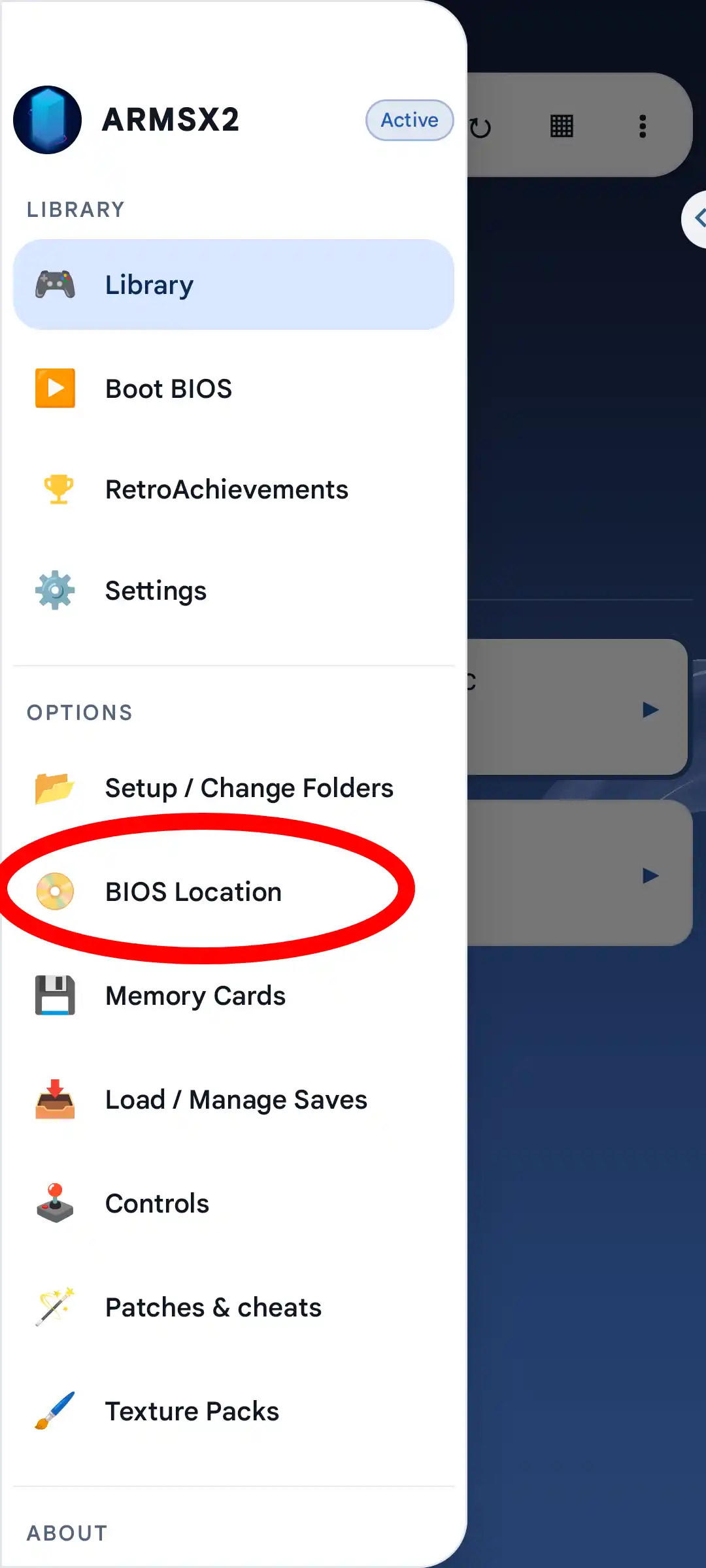
2. Goto Options BIOS Location
Scroll down and go to the options menu > BIOS LOCATION.
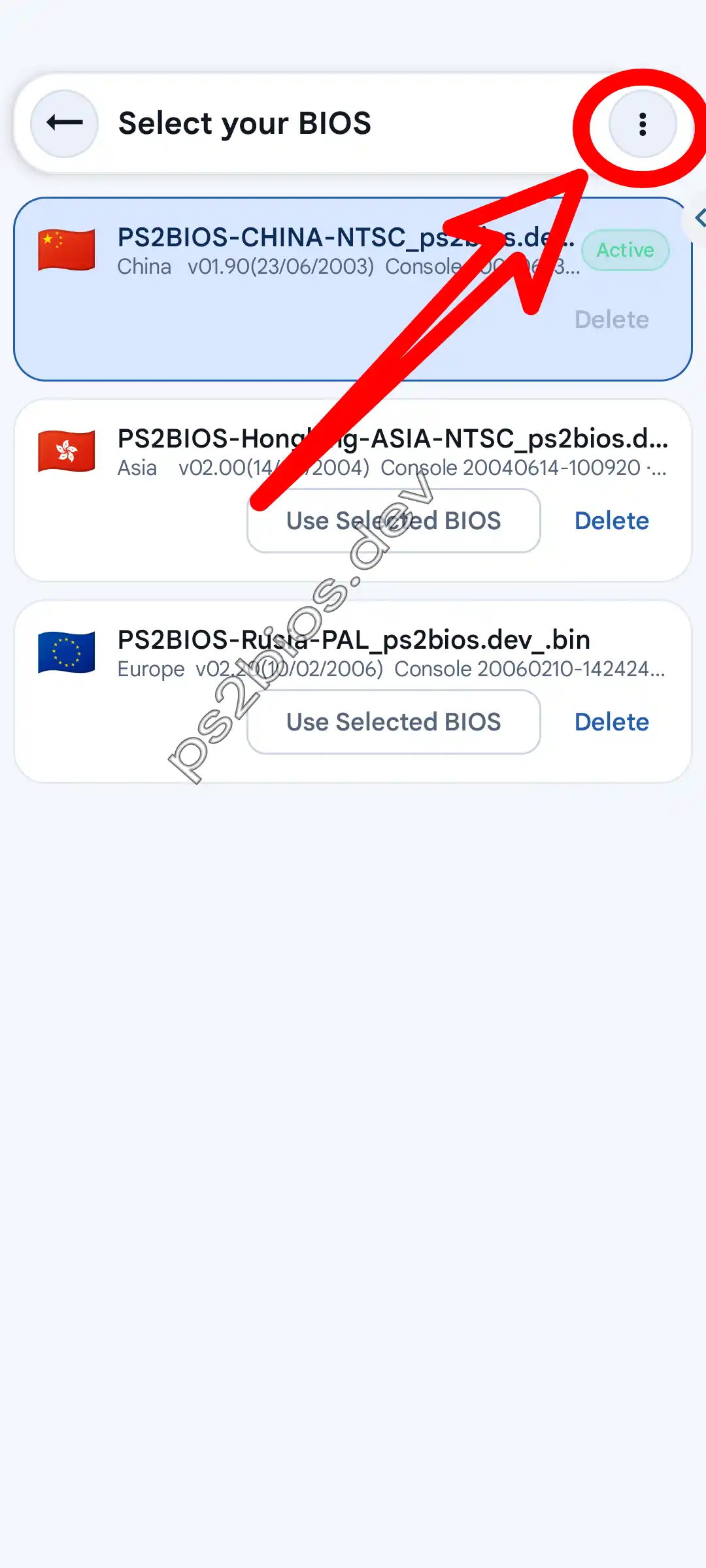
3. BIOS Menu
After entering the BIOS menu, tap the three dots in the top-right corner.
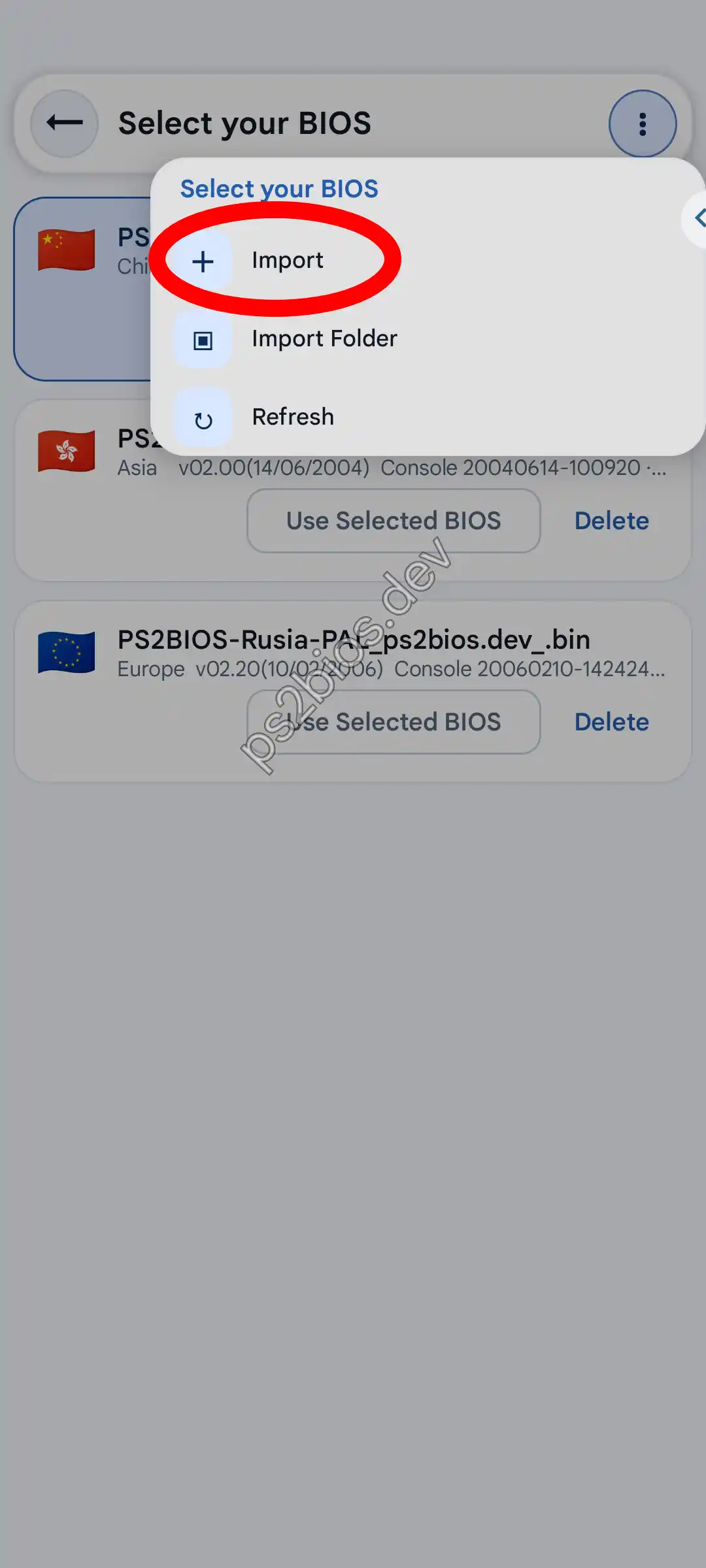
4. Start the installation wizard
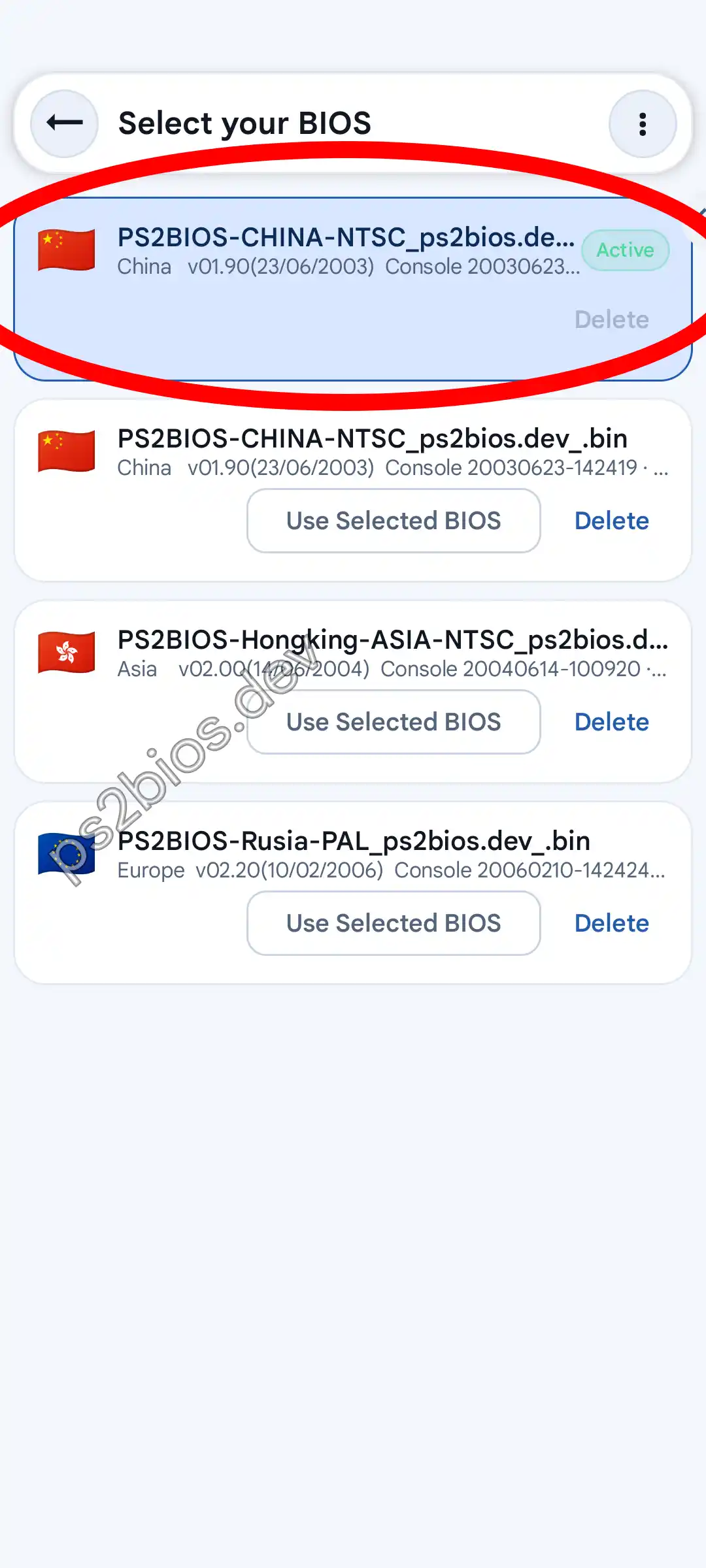
After that, options will appear under Select your BIOS; then, select Import.
5. Select BIOS on File Manager
You will be redirected to the file manager; then, navigate to the folder where the BIOS is located and select the BIOS file.
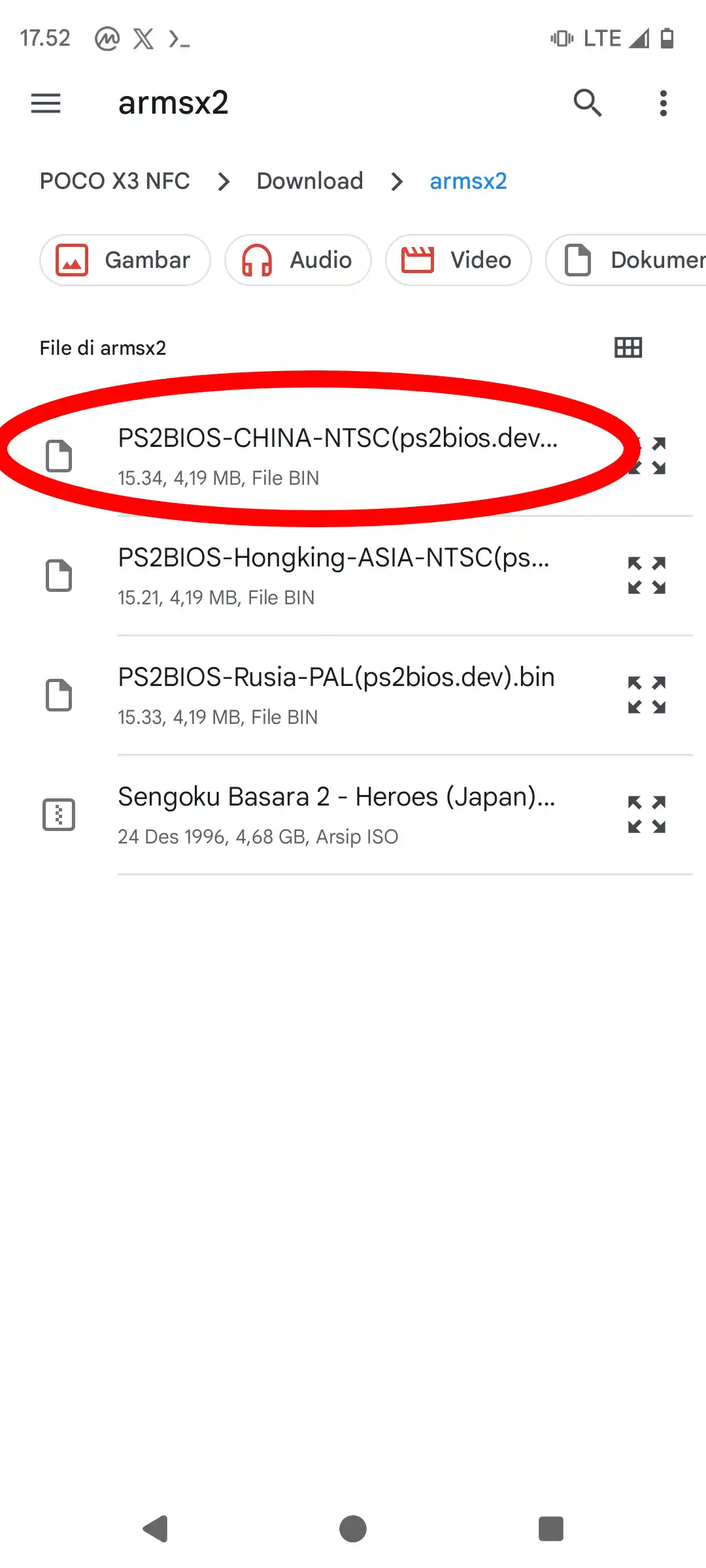
6. Installasi Done
After you make a selection in the file manager, the BIOS will automatically activate (meaning the BIOS is being used by ARMSX2).
Frequently Asked Questions
Here are questions and answers frequently asked by users:
.bin format that you can import straight into ARMSX2. So, you don't need to extract it; simply use the BIOS file you downloaded.