Download PS3 Firmware for ArmSX3 Emulator
PlayStation 3 System Software
About this firmware
The PlayStation 3 firmware is an essential file required by ArmSX3 to emulate the PlayStation 3 system; we have tested it directly on the emulator and confirmed that it runs smoothly and stably.
The firmware file we provide, PS3UPDAT.PUP, contains the system libraries and Low-Level Emulation (LLE) modules required by ArmSX3 to emulate the PlayStation 3 console environment.
Apa Itu Firmware PS3 untuk Emulator?
ArmSX3 is a PlayStation 3 emulator for Android. It emulates the PS3's hardware, but you must manually install the system software—in the form of firmware (the PS3UPDAT.PUP file)—yourself. This firmware contains system libraries, such as libsre.sprx and librtc.sprx, which are called by games during execution; therefore, PS3 games cannot run without it.
In ArmSX3, a PUP file is installed once via the File & Install Firmware menu. ArmSX3 will automatically extract the necessary modules—such as LLE (Low-Level Emulation) modules for functions like audio and networking—into its internal storage. Thereafter, all games will automatically utilize these modules, eliminating the need to install the firmware again when switching between different games.
Latest PS3 Firmware Information
The file we provide is PS3 System Software version 4.92. We've tested it directly on the ArmSX3 emulator, and it runs smoothly.
- Versi file
- 4.92
- Nama file
PS3UPDAT.PUP- Ukuran
- 196.63 MB (206.177.436 byte)
- MD5
c179ad173bbc08b55431d30947725a4b- Format
- PUP (PlayStation Update Package)
- Digunakan untuk
- Memasang perangkat lunak sistem PS3 di ArmSX3
- Perlu diekstrak?
- Tidak, pilih file PUP langsung dari ArmSX3
How to Install PS3 Firmware in ArmSX3
Once you have downloaded PS3UPDAT.PUP from this page, here is how to install it. These steps are for ArmSX3 on Android.
Download the PS3 firmware file
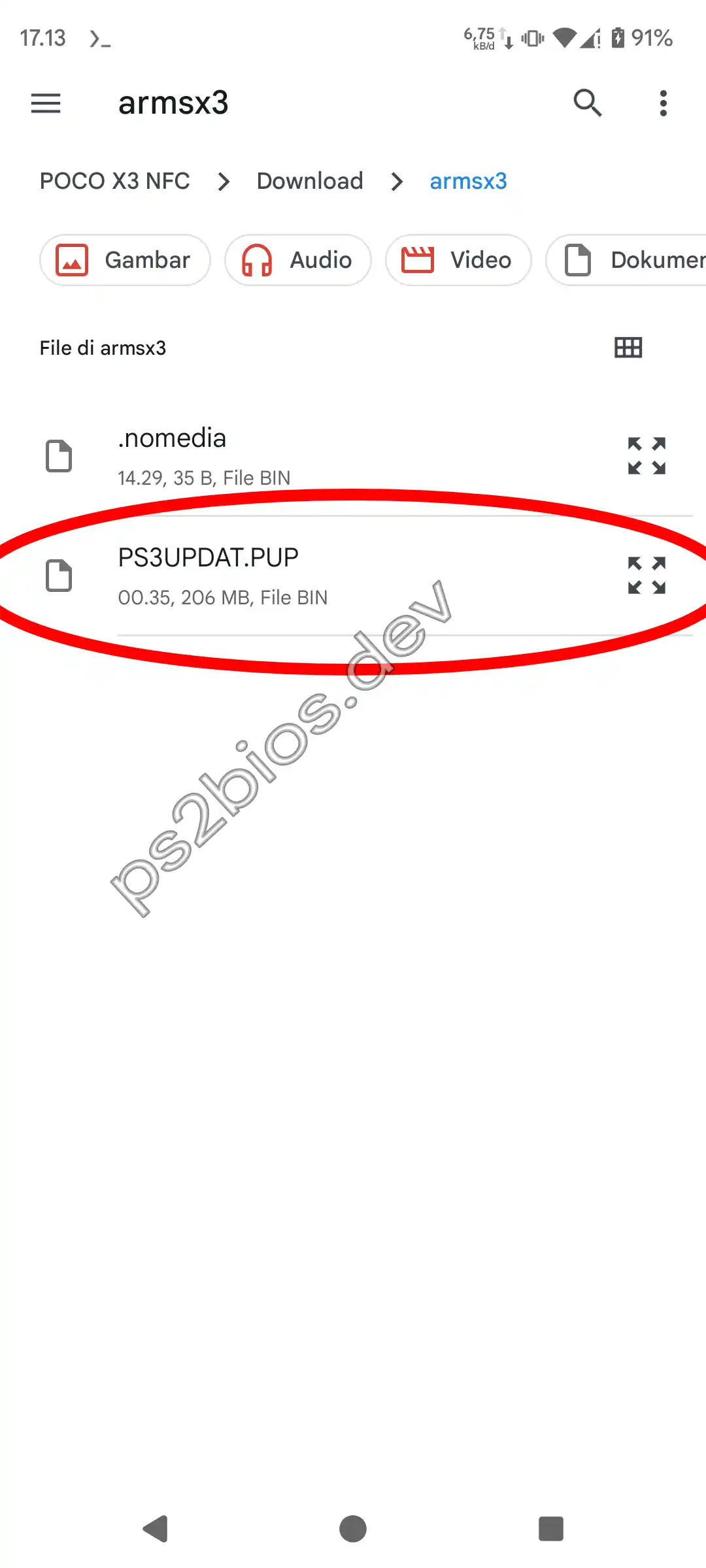
Download PS3UPDAT.PUP and save it in a folder you can find again. Keep it as a PUP file; don't extract or modify it.
Open the firmware install page
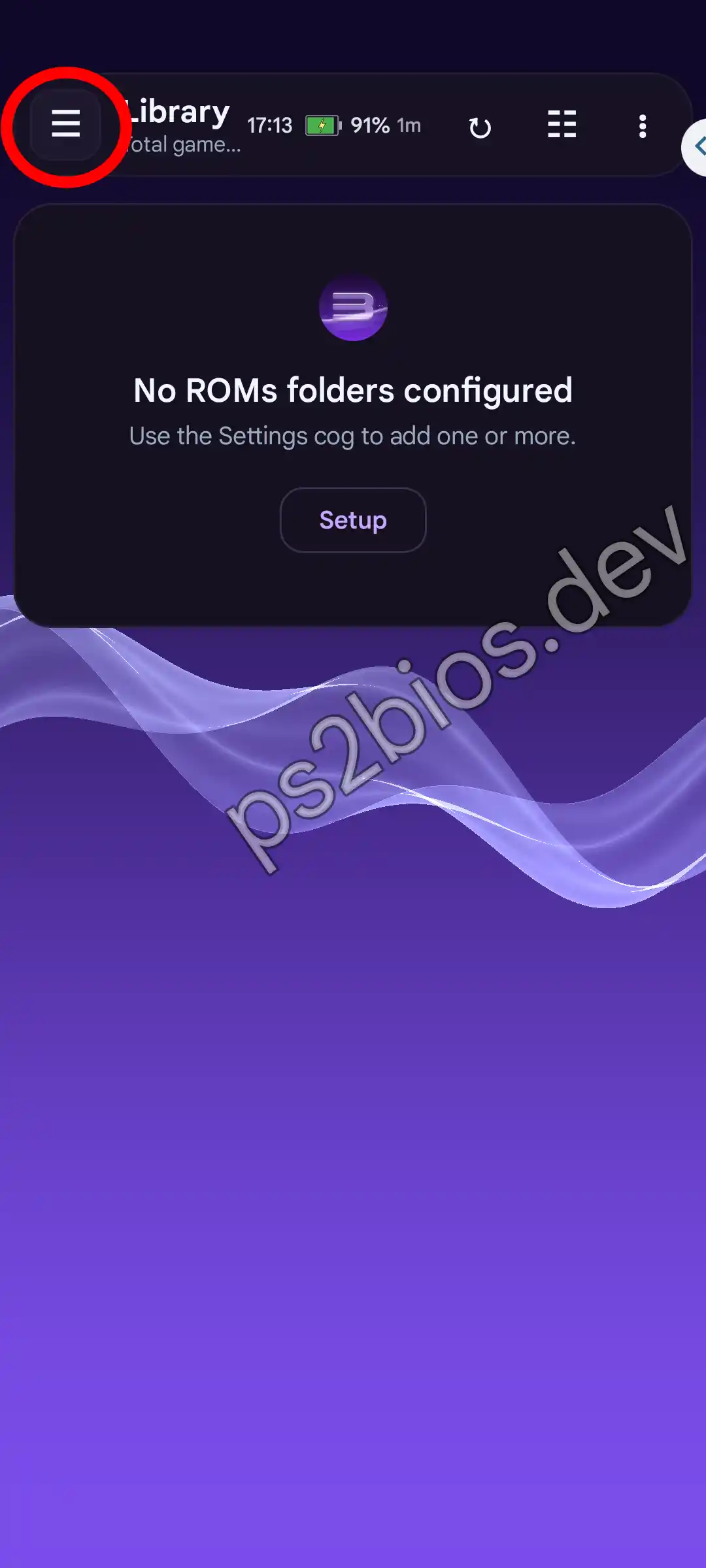
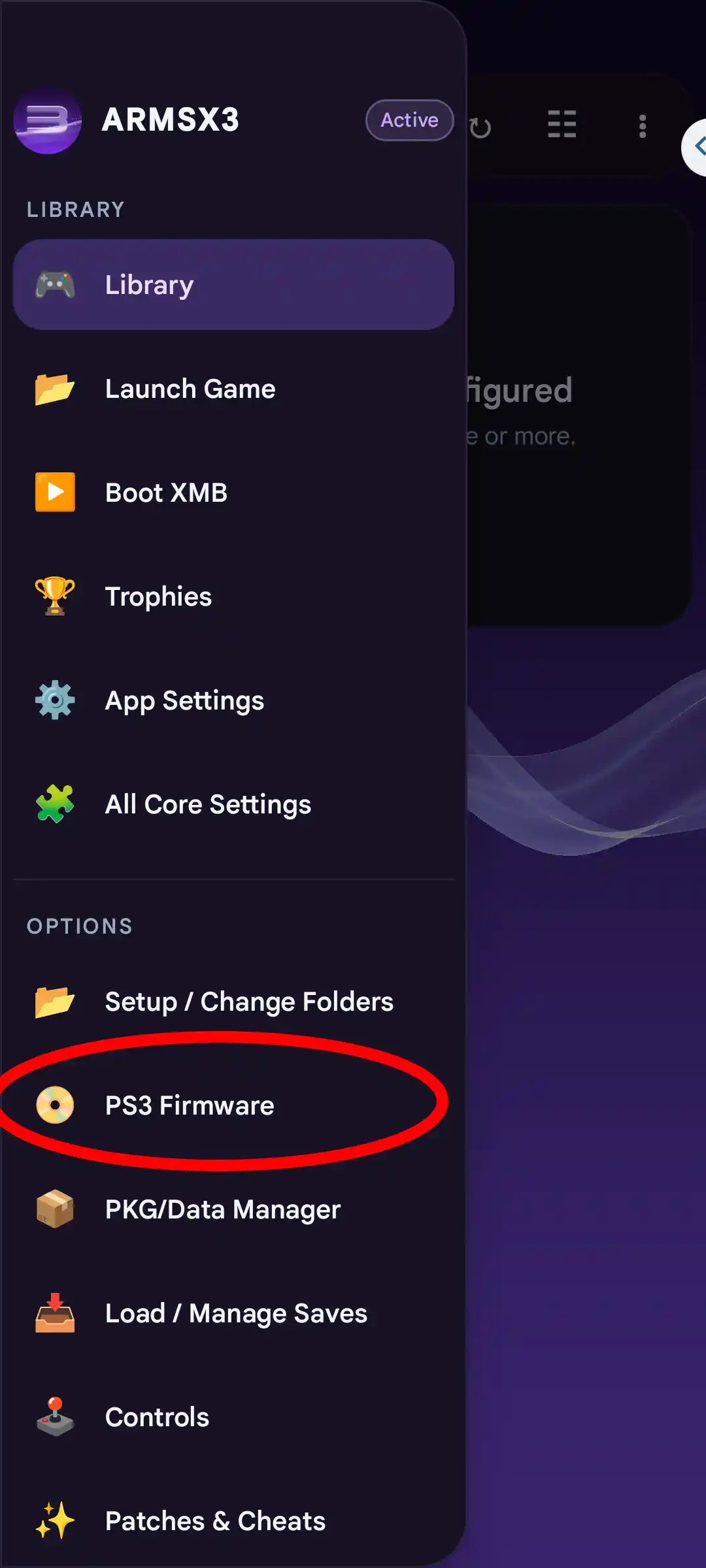
Open ArmSX3, tap the three-line menu icon at the top left, then choose PS3 Firmware under Options.
Select PS3UPDAT.PUP
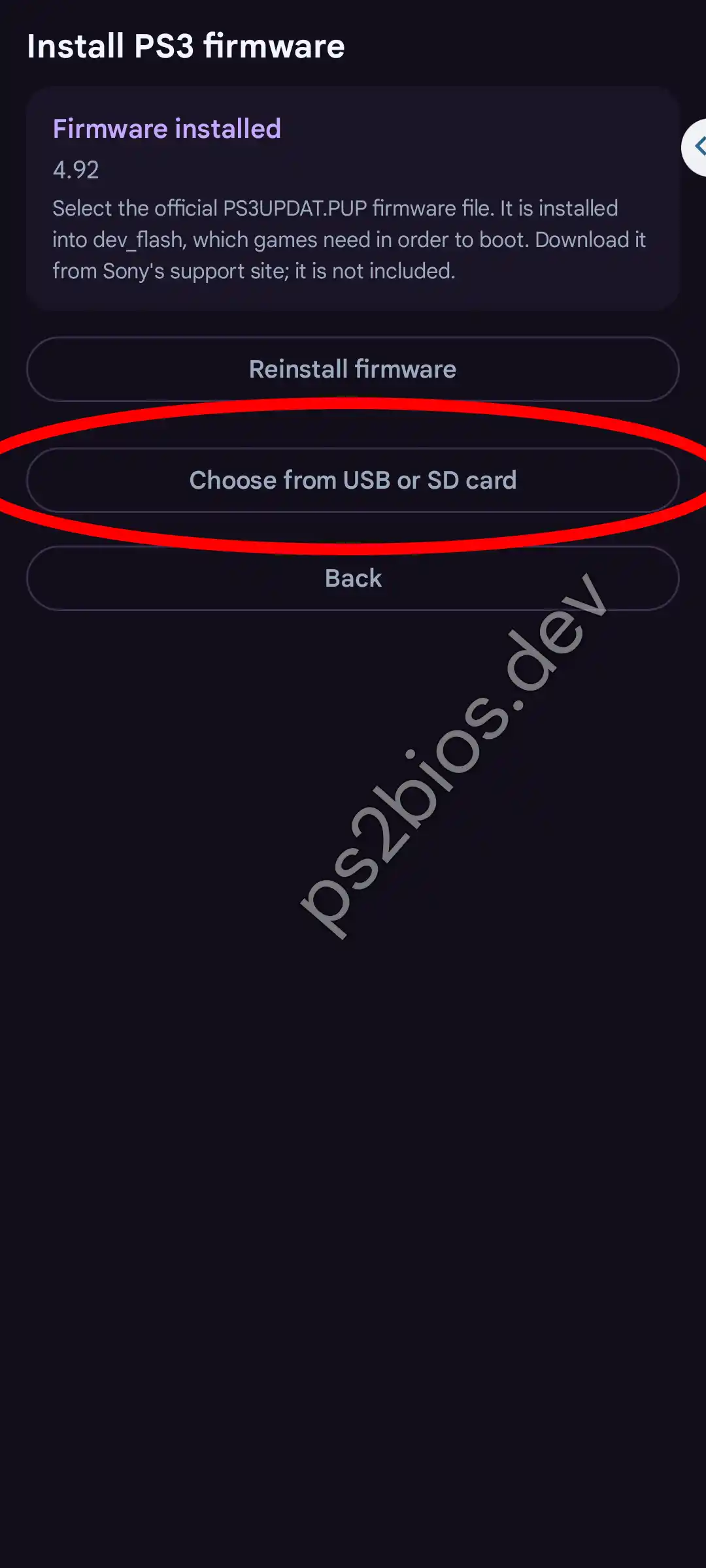
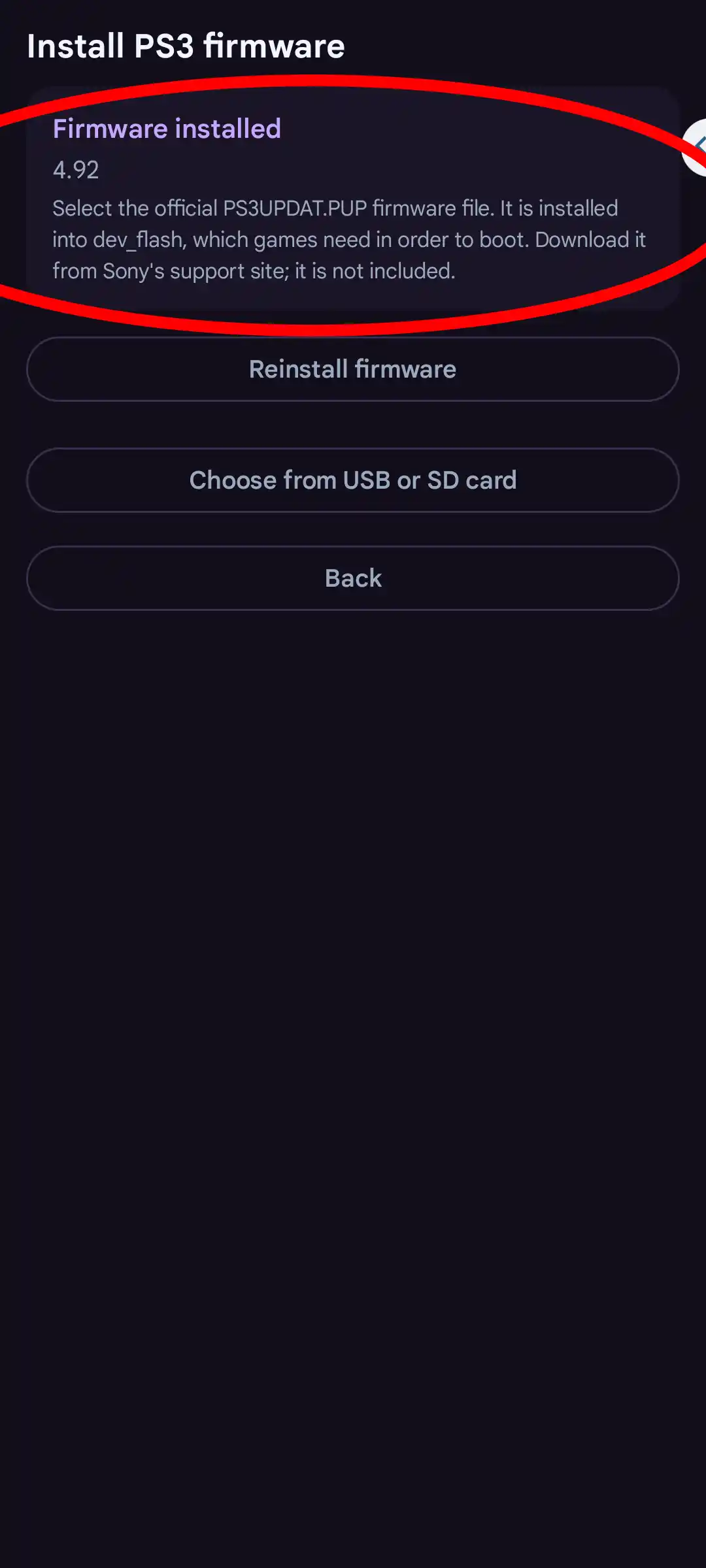
On the Install PS3 firmware page, tap Choose from USB or SD card, then open the folder where PS3UPDAT.PUP is saved and select it.
Wait for the installation to finish
Let ArmSX3 extract and install the firmware modules. It is done when the card at the top of the page reads Firmware installed with the version number. Don't close ArmSX3 while it runs.
Finish setting up ArmSX3
Once the firmware is installed, ArmSX3 can load PS3 games. The first time you launch a game, wait for the module and cache compilation to finish.
PS3UPDAT.PUP directly. Don't extract the PUP file, and don't close the emulator while it installs.
Problems When Installing PS3 Firmware on ArmSX3
If you are having trouble installing the firmware, try checking some of the common issues that users encounter and how to fix them.
Emulator rejects PUP files
Usually the file is corrupted because the download was not fully completed. Re-download it from this page, then you can compare the size with the specifications table (±196 MB). The file must be in .PUP format and must not have been opened, modified, or recompressed with another application.
Firmware does not appear in file chooser
Save PS3UPDAT.PUP in a frequently used folder like Downloads or Documents, then open the PS3 Firmware menu, tap Choose from USB or SD card, and navigate to the file. If you don't see the file, open your Android settings and enable storage access for ArmSX3.
The installation process is stuck in the middle of the road
The system module extraction process can take quite a while, so give it a few minutes and leave the application open on the screen and don't minimize it. If nothing changes, try clearing up some storage space and ensuring ArmSX3 is allowed to write to its data folder before restarting the firmware installation process from the beginning.
Game still black screen after firmware installed
Firmware isn't usually the only culprit. Other causes could be a corrupted or invalid game dump, an incompatible GPU driver, or a game title that isn't supported by the emulator.
Preparations Before Installing PS3 Firmware
Before installing the firmware, it's a good idea to check these four things. This will ensure a smoother firmware installation process and prevent you from having to start over again.
Prepare blank space
Leave at least 1.5 GB of free space on your internal storage. This should be more than enough space to accommodate the PUP file, as the extracted modules are stored in the data folder.
Download with stable connection
The file is approximately 196 MB in size, so use a stable Wi-Fi connection to avoid interruptions. We recommend downloading with a browser other than Chrome or Chromium.
Save a copy of the PUP file
Once installed, don't immediately delete the PS3UPDAT.PUP file. This is to prevent the installation from crashing and needing to be restarted. You won't need to download the firmware file again.
Use the latest version of ArmSX3
Always use the latest version of the ArmSX3 emulator before installing the firmware, because there are usually some bug fixes from the developer so that the firmware can run smoothly.
PS3 Firmware Functions and Uses in ArmSX3
Firmware contains many system components used by PS3 games. Below are the main firmware functions in ArmSX3.
Native System Library
PS3 games rely on the console's built-in system libraries, such as libsre.sprx and librtc.sprx. These libraries exist only in the firmware, and ArmSX3 loads them via Low Level Emulation (LLE), allowing games to run with the same code as on the original console.
Game rarely experiences errors
Without firmware, games requiring system libraries would freeze at the logo, go to a black screen, or simply force close. After installing the firmware, these issues were significantly reduced, and more games were playable.
Sound Not Lost
Background music and character voices in many PS3 games use ATRAC3plus or AAC formats. The decoder for these formats is built into the PS3 firmware, so without it, games may run without sound or experience intermittent audio.
Save Game Working Properly
Once the firmware is installed and the game is running normally, your progress can be saved, just like on a PS3. You can close ArmSX3 at any time and resume where you left off.
PS3 Characteristics Menu
The firmware also includes the PS3's signature menu display, the XrossMediaBar (XMB). Opening it allows you to view system settings like language and a PS3-like UI on your smartphone.
Install Firmware Only Once
You don't need to install firmware multiple times on ArmSX3. Just install one .PUP file, and it can be used for multiple games.
Partisi dev_flash Virtual
The firmware installation results are stored in the virtual dev_flash partition located within the ArmSX3's internal data folder, mimicking the PS3's system storage mechanism. Do not modify the firmware's system files, as they are essential for the emulator to use.
Files Can Be Hash-Matched
To ensure the PS3UPDAT.PUP file is not corrupted, check its MD5 hash. If the hash matches the one listed in the information table, the file is intact and can be used perfectly.
Tanya Jawab Seputar Firmware PS3 di ArmSX3
PS3UPDAT.PUP from this site.
.PUP extension.
dev_flash virtual partition. We advise against modifying or deleting the contents of this folder to prevent ArmSX3 from force-closing during operation.
Other Articles
Download PS2 BIOS for ARMSX2 Emulator
The PS2 BIOS is essential system firmware required by the ARMSX2 Android emulator to boot up and smoothly run …
PS2 BIOS for PCSX2 Free Download
Download the high-performance PS2 BIOS binaries for the PCSX2 emulator. The absolute cornerstone firmware required to …
PS2 BIOS Download (All Regions) for AetherSX2
The PS2 BIOS is a crucial component required by AetherSX2 to run PlayStation 2 emulation, serving as the essential …
How To Install PS2 BIOS on PCSX2 Emulator
A quick and easy guide on how to set up and install the PS2 BIOS file in the PCSX2 emulator. You'll be able to play …
How to Install PS2 BIOS on AetherSX2 Emulator
A full guide for 2025 on how to install the PS2 BIOS on AetherSX2 for Android. In just a few minutes, you can get your …